Feeds
Smartsign allows you to create your own RSS feed directly in the system. This is useful when you want to publish internal news, announcements, or other updates to your screens without relying on external sources.
Each feed generates a standard RSS XML link, which can be used in any template that supports the RSS datasource.
RSS does not have a universal standard for including media files. Depending on how the RSS is displayed, images or attachments may not always be visible.
Using Feeds, you can publish your own posts that will appear in the custom RSS feed.
Each post can include:
- Heading – The title shown on your screens.
- Message – The main content of the message.
- Image – An optional image shown with the post.
- Time limit – Turn on to set a From and To date and time
that determines when the post is active.
- Only posts that fall within their validity period will be included in the RSS feed and displayed on screens.
Before you start creating your feed posts, the feed must exist.
To show the posts on screens, copy the feed's Link from its
Info tab into the RSS link field of an RSS template datasource.
Follow the steps in the
Feeds configuration guide
to learn more.
To post, your user profile needs View under Feeds and Create under Feed entries. If you don't see Feeds under Management, or there is no New item button, ask your administrator.
Create messages in your feed
- Go to Management and Feeds.

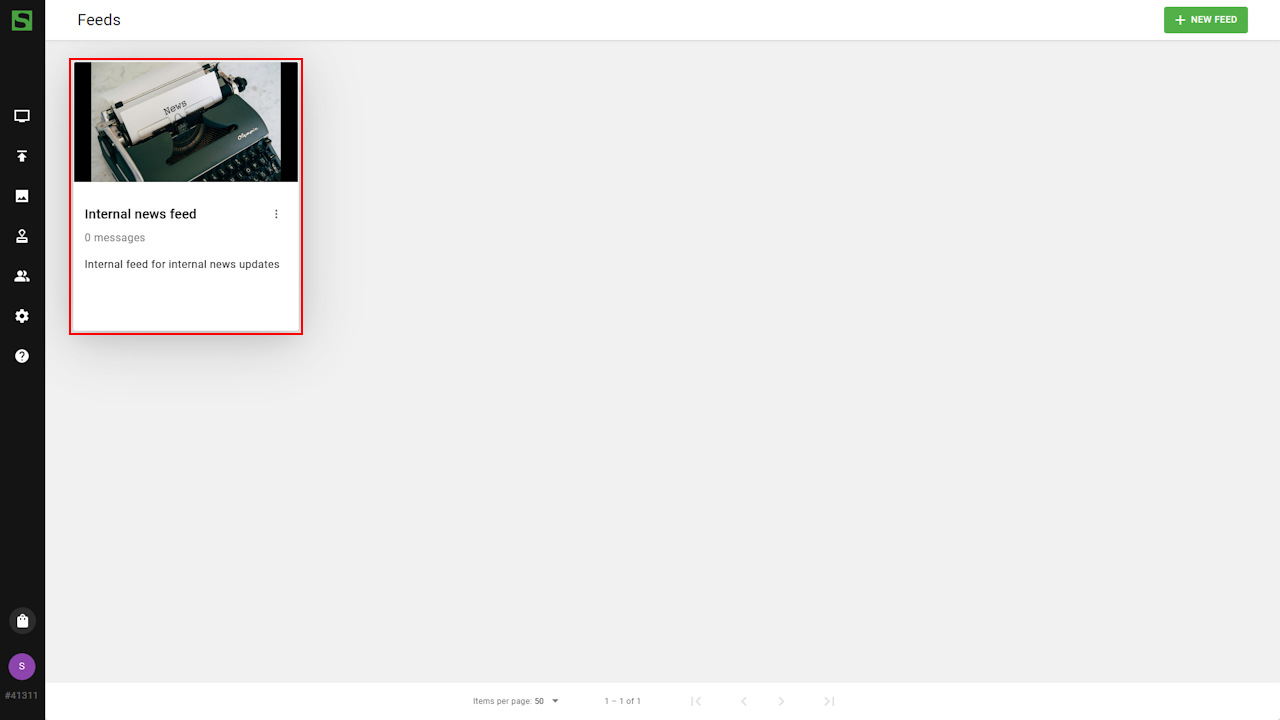
- Click the feed you want to edit.
- Select the Feed tab.

- Click New item to create a post.

- Enter the message and click Create to save.

- The post appears on screens showing this feed the next time the
datasource updates (see Data update time in the datasource
settings), and only while it is within its time limit.

Edit or delete a post
- Click a post, or select Details in its menu, to open Update item. Here the fields are Image, Heading, Description and Time limit with Start and End. Click Save to save your changes.
- To remove a post, select Delete in its menu and confirm.